Advanced WordPress Security Best Practices for Maximum Protection
When it comes to website safety, prevention is always better than recovery. As the world’s most popular content management system, WordPress powers millions of websites, making it a prime target for hackers, malware injections, and automated bot attacks. Following proven WordPress Security Tips and implementing advanced protection measures can significantly reduce your website’s risk of compromise.
This in-depth guide explains WordPress website security best practices and answers the most important question site owners ask: how to secure a WordPress website against both common and advanced attack vectors without harming performance or SEO.
1. Choose a Secure and Reputable Hosting Provider
Choosing a secure and reputable hosting provider is the foundation of WordPress website security and one of the most important WordPress Security Tips. A reliable host protects your site from common online threats with built-in safeguards like malware scanning, web application firewalls (WAF), and DDoS protection.
When planning to build or migrate your site, it’s also important to choose the right WordPress development company to ensure security, performance, and long-term stability. Reputable hosts like Cloudways, SiteGround, and WP Engine provide automatic backups, free SSL certificates, and account isolation, helping prevent WordPress hacking and protect sensitive data.
Opting for managed WordPress hosting further enhances security by automating updates, patches, and performance tuning, giving you a fast, stable, and secure website without technical hassle.
2. Keep WordPress Core, Themes, and Plugins Updated
Regularly updating your WordPress core, themes, and plugins is a crucial step in how to secure a WordPress website and keeping it running at peak performance. Among the most effective WordPress Security Tips, timely updates deliver essential security patches, bug fixes, and compatibility improvements that protect your site from known vulnerabilities and exploits. Websites running outdated software are often targeted by hackers, making updates non-negotiable for long-term safety.
To maintain strong protection, enable automatic updates for the WordPress core, and regularly review plugins and themes for new releases. Using a staging environment to test updates before applying them live helps avoid compatibility issues or unexpected downtime. Consistent updates play a key role in how to secure a WordPress website while also improving stability, performance, and search engine trust.
3. Remove Unused Plugins and Themes
Unused or inactive plugins and themes may seem harmless, but they can pose a serious security risk to your WordPress site. Even when deactivated, these files remain on your server and can still be exploited if they contain vulnerabilities, weakening your overall WordPress malware protection. Hackers often target outdated or inactive components because they are less likely to be maintained or monitored. Removing them reduces your website’s attack surface, leaving fewer entry points for malicious code or unauthorized access, an important WordPress Security Tip for long-term protection.
To keep your site secure and optimized, regularly review your installed plugins and themes and delete any that are not actively in use, either through the WordPress dashboard or via FTP access if needed. This simple WordPress Security Tip not only improves security but also enhances site performance by reducing server load and clutter within your WordPress directory. A clean, well-maintained setup helps your website run faster and remain easier to manage over time.
4. Change the Default Administrator Username
Leaving your administrator username as “admin” makes your WordPress site an easy target for hackers, as it’s often the first username tested during brute-force attacks. Using a common or predictable admin name weakens your site’s defenses and increases the risk of unauthorized access. One of the most effective WordPress Security Tips is to create a new administrator account with a unique and unpredictable username, which helps prevent WordPress hacking by making login attempts significantly harder.
After setting up the new admin account, delete the default “admin” user from the WordPress dashboard or through phpMyAdmin to ensure it cannot be exploited. Be sure to transfer any existing content to the new account before deletion. This small but powerful step improves login security and further helps prevent WordPress hacking from automated bots and unauthorized users.
5. Enable Two-Factor Authentication (2FA)
Enabling Two-Factor Authentication (2FA) greatly enhances WordPress security by requiring an extra verification step beyond the standard username and password. This is an important WordPress Security Tip, because even if a hacker steals or guesses your password, they still cannot access your account without the second authentication factor usually a time-based code from an app like Google Authenticator or a verification link sent to your email.
Plugins such as WP 2FA, Wordfence Login Security, or Google Authenticator make it easy to add 2FA to your WordPress login process, offering options like QR codes, backup tokens, or SMS codes. By enabling 2FA, you build a strong defense against brute-force attacks and unauthorized logins, significantly reducing the risk of your website being compromised.
6. Deploy a Comprehensive Security Plugin
A comprehensive security plugin provides all-in-one protection for your WordPress site, making it an essential part of WordPress Security Tips. Tools like Wordfence, Sucuri Security, or iThemes Security offer a web application firewall (WAF), malware scanning, login protection, and real-time threat detection. These plugins constantly monitor your site for suspicious activity or vulnerabilities. Using them is a practical way to understand how to secure a WordPress website effectively.
In addition to threat prevention, these security plugins offer features like IP blocking, login attempt limits, email alerts, and file integrity checks, giving you full control over your site’s safety. Many include dashboards with real-time reports and security analytics, allowing quick action if something seems off. By deploying a full-stack security plugin, you reduce the risk of hacking, malware infections, and data breaches, keeping your WordPress website secure, stable, and trustworthy.
7. Harden wp-config.php File
The wp-config.php file is one of the most critical files in your WordPress installation because it contains sensitive information such as database credentials, authentication keys, and configuration settings. Protecting this file is a crucial WordPress website security best practice. You can move the file one level above the public_html directory to make it inaccessible to web browsers or restrict access using an .htaccess rule that denies all external requests.
For example:
<Files wp-config.php>
order allow,deny
deny from all
</Files>
This ensures that even if someone tries to access the file directly via a URL, the server blocks it completely, safeguarding your website from potential data breaches and configuration exposure.
8. Schedule Automated Malware Scans
Regularly scheduling automated malware scans is a key WordPress Security Tip for early detection of malicious code, injected scripts, or unauthorized file modifications on your site. Premium security plugins like Wordfence, Sucuri Security, and MalCare provide WordPress malware protection by scanning your files, themes, and plugins for potential threats on a daily or weekly basis.
These tools can also send instant email alerts when suspicious activity is detected, allowing you to act immediately before issues spread. Consistent automated scanning helps maintain your website’s integrity, performance, and user trust, ensuring your WordPress site stays secure and reliable.
9. Disable PHP Execution in Uploads Directory
The uploads directory in WordPress is a common target for hackers because it stores media files and allows uploads through the admin panel or contact forms. If a vulnerability exists in a plugin or theme, attackers may upload malicious PHP scripts and execute them to gain control of your site. As a proactive WordPress Security Tip, disabling PHP execution in the uploads folder ensures that even if a harmful file is uploaded, it cannot run, strengthening overall WordPress malware protection.
This security measure can be implemented by placing an .htaccess file inside the /wp-content/uploads/ directory with the following rule:
<Files *.php>
deny from all
</Files>
This command blocks the execution of PHP files while allowing safe file types like images, PDFs, and videos. It’s a simple yet powerful step for WordPress malware protection, closing a commonly exploited loophole and protecting your site from remote code execution attacks.
10. Disable Theme and Plugin File Editing
Disabling theme and plugin file editing in the WordPress dashboard is an important WordPress website security best practice that helps protect your site from unauthorized or accidental code changes. By default, WordPress allows administrators to edit PHP, CSS, and other files directly from the admin panel, which can be risky if a hacker gains access to your account.
To prevent this, add the following line to your wp-config.php file:
define('DISALLOW_FILE_EDIT', true);
This disables the built-in file editor, ensuring that a compromised admin account cannot inject harmful code into your themes or plugins. It’s a simple yet effective way to strengthen your WordPress backend security.
11. Implement SSL/TLS Encryption
Implementing SSL/TLS encryption is essential when learning how to secure a WordPress website, as it protects the communication between your site and its visitors. It ensures that sensitive information such as login credentials, payment details, and form submissions is transmitted in an encrypted format, preventing hackers from intercepting or tampering with the data.
Installing an SSL certificate and configuring your website to use HTTPS not only enhances security but also improves SEO rankings and user trust, since modern browsers label non-HTTPS sites as “Not Secure.” You can easily obtain and install a free SSL certificate through Let’s Encrypt or your hosting provider, ensuring complete end-to-end data protection for your WordPress website.
12. Disable XML-RPC if Unused
XML-RPC is a WordPress feature that enables remote communication with your site, allowing external applications or plugins like Jetpack and mobile apps to interact with it. However, if you’re not using these services, XML-RPC can become a security risk, as hackers often exploit it for brute-force attacks and DDoS amplification. Disabling XML-RPC is an effective step to prevent WordPress hacking and reduce unnecessary exposure.
You can disable XML-RPC by installing a plugin such as Disable XML-RPC or by adding a blocking rule in your .htaccess file. Turning off this feature closes a common attack vector while keeping your site’s essential functions safe and intact.
13. Opt for Hosts Offering Integrated Security Layers
Choosing a hosting provider with integrated security layers is one of the essential WordPress website security best practices, as it protects your site from threats at the server level before they even reach WordPress. Look for hosts that offer built-in firewalls, intrusion detection systems (IDS), malware scanning, and DDoSprotection as part of their infrastructure.
These features continuously monitor traffic, block malicious requests, and detect suspicious activity in real time. By selecting a host with advanced security measures such as SiteGround, Cloudways, or WP Engine, you significantly reduce your website’s exposure to attacks while maintaining a stable, high-performing environment.
14. Enforce Strong Password Policies
Enforcing strong password policies is a vital part of WordPress website security best practices and plays a key role in preventing unauthorized access to your WordPress website. Weak passwords are a common entry point for hackers using brute-force or dictionary attacks, which can compromise your site and weaken WordPress malware protection.
To stay secure, all user accounts, especially those with administrative privileges, should use complex passwords that include a mix of letters, numbers, and special symbols, and are at least 12 characters long. Security plugins can help enforce these standards by requiring strong passwords during account creation or password updates. To simplify management and improve safety, password managers like Bitwarden or 1Password can generate and securely store unique passwords for each account. This approach minimizes the risk of password reuse, human error, and phishing attacks, ensuring consistent protection across your entire WordPress environment.
15. Log User Activity
Logging user activity is an important WordPress Security Tip for maintaining transparency and strong security within your website. By using plugins like WP Activity Log or Simple History, you can track user actions such as logins, post edits, plugin installations, and configuration changes.
These detailed logs help you quickly identify suspicious behavior, detect unauthorized access, and trace the source of potential security issues. In case of accidental changes or malicious activity, activity logs also make it easier to restore your site and take corrective action before further damage occurs.
16. Audit Administrator Accounts
Regularly auditing administrator accounts is crucial to maintaining strict access control and preventing WordPress hacking on your website. Inactive or outdated admin accounts can become serious security risks if their credentials are compromised over time.
Periodically review the list of users with administrator privileges in the Users panel and remove any accounts that are no longer needed. For larger or more technical setups, WP-CLI commands can help quickly identify and delete unauthorized users, ensuring only trusted administrators have backend access.
17. Limit Login Attempts
Limiting login attempts is an effective WordPress Security Tip that helps protect your WordPress site from brute-force attacks, where hackers use automated bots to repeatedly guess usernames and passwords. By default, WordPress allows unlimited login attempts, which makes it easier for attackers to exploit weak credentials.
Installing plugins like Limit Login Attempts Reloaded or Wordfence adds an extra layer of protection by restricting the number of failed login attempts and temporarily blocking suspicious IP addresses. This simple measure helps prevent WordPress hacking, reduces unnecessary server strain, and improves your website’s overall security.
18. Inspect wp-content and Uploads Folders
Regularly inspecting your /wp-content/ and /uploads/ directories is essential for effective WordPress malware protection, as these locations are common targets for hidden malicious files. These folders should mainly contain media files like images, videos, and theme or plugin assets, not executable scripts.
Using a security plugin or performing manual audits via FTP or your hosting file manager helps identify suspicious PHP or unknown files early. If any unfamiliar scripts are found, they should be quarantined and reviewed immediately to prevent malicious code execution and keep your WordPress installation clean and secure.
19. Restrict User Roles and Capabilities
Restricting user roles and capabilities is a vital WordPress website security best practice, based on the principle of least privilege, which means granting users only the permissions they need to perform their tasks. For example, contributors should never have the same level of access as administrators.
By using tools like the Members plugin, you can fine-tune user roles, create custom permissions, and prevent unauthorized users from making critical changes to your site. Limiting administrative access reduces the risk of accidental errors and protects your website from insider threats and compromised accounts, ensuring better control over all user activities.
20. Force HTTPS Sitewide
Forcing HTTPS sitewide is one of the essential WordPress Security Tips to ensure every page and resource on your website is loaded over an encrypted connection. Even if a user tries to access your site using “http://,” they are automatically redirected to the secure “https://” version, keeping data protected at all times.
You can enforce this by adding the following code to your site’s .htaccess file:
This 301 redirect ensures all traffic is routed through SSL, protecting data integrity, boosting SEO rankings, and preventing mixed content warnings in browsers. It’s a simple but powerful step to maintain a consistently secure WordPress website.
21. Monitor Traffic and Server Logs
Monitoring your traffic and server logs is an important WordPress Security Tip for detecting potential threats before they escalate. Sudden traffic spikes, repeated failed login attempts, or abnormal CPU usage can signal brute-force attacks, bot activity, or active hacking attempts.
Regularly reviewing Apache or Nginx access logs helps identify suspicious IP addresses and unusual behavior patterns. Using tools like Google Analytics, Cloudflare, or your hosting dashboard to track real-time traffic allows you to respond quickly, block malicious users, and maintain your website’s stability and security.
22. Secure Contact and Registration Forms
Securing your contact and registration forms is an important step in learning how to secure a WordPress website from spam, bots, and potential hacking attempts. Implementing CAPTCHA or Google reCAPTCHA helps block automated scripts from submitting fake or malicious data, keeping your database clean and reducing server load.
Additionally, always sanitize and validate user inputs to protect against SQL injection and cross-site scripting (XSS) attacks that can compromise your website’s data and functionality. Using trusted form plugins like Contact Form 7, WPForms, or Gravity Forms with built-in security features ensures safe data handling and minimizes vulnerabilities in your WordPress forms.
23. Automate Regular Backups
Automating regular backups is one of the most important WordPress Security Tips for protecting your website from data loss caused by hacking, server crashes, or accidental errors. Using tools like UpdraftPlus, BackupBuddy, or your hosting provider’s built-in backup system, you can schedule daily automatic backups of your website’s files and database.
For maximum safety, always store these backups off-site on cloud platforms such as Google Drive, Dropbox, or Amazon S3, so you can quickly restore your site even if your main server is compromised. Regular automated backups provide peace of mind and make disaster recovery fast and hassle-free.
24. Use All-In-One Security Plugins for Unified Protection
Using an all-in-one security plugin is one of the most effective WordPress Security Tips for protecting your website from multiple types of threats. Tools like All In One WP Security & Firewall combine essential security features into a single solution, including a firewall, brute-force attack protection, file integrity monitoring, login lockdown, and spam prevention.
This unified approach simplifies security management, reduces the need for multiple plugins, and minimizes compatibility issues. With real-time monitoring and easy-to-use dashboards, these plugins make it simple to maintain strong, consistent protection across every aspect of your WordPress website.
25. Enable Hosting-Level Malware Alerts
Enabling hosting-level malware alerts adds an extra layer of real-time WordPress malware protection to your website. Trusted hosting providers such as SiteGround, Cloudways, and WP Engine offer built-in monitoring systems that continuously scan your files and server environment for suspicious activity or code injections.
When a potential threat is detected, instant alerts allow you to take immediate action before serious damage occurs. This proactive approach ensures vulnerabilities are identified early, helping maintain your site’s integrity, performance, and overall security.
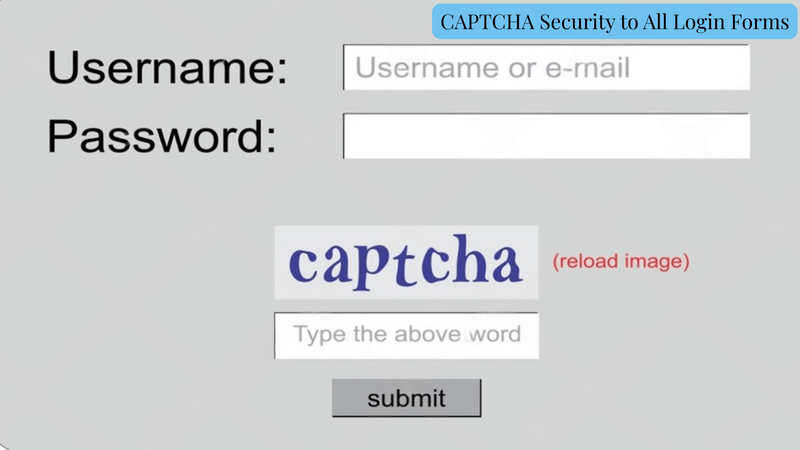
26. Add CAPTCHA Security to All Login Forms
Adding CAPTCHA security to all your WordPress login, registration, and password reset forms is an effective way to prevent WordPress hacking caused by automated bots and brute-force attacks. By integrating tools like Google reCAPTCHA or hCaptcha, you add an extra verification step that ensures only real users can submit these forms.
This reduces unauthorized login attempts, protects user accounts, and lowers the risk of credential-stuffing attacks. Most security and form plugins offer easy integration, allowing you to strengthen your website’s protection without compromising user experience.
27. Protect Comment Sections from Spam
Protecting your comment sections from spam is essential for maintaining your website’s credibility, performance, and SEO health. Spam comments often include malicious links, phishing attempts, or irrelevant content that can damage your site’s reputation and expose users to security risks.
Using tools like Akismet, Antispam Bee, or WordPress’s built-in comment moderation features helps automatically detect and block unwanted submissions. These tools filter suspicious content, hold questionable comments for review, and prevent bots from flooding your site. Keeping your comment sections clean and secure enhances user trust and ensures a professional, spam-free environment.
28. Improving Crawl Efficiency and Maintaining SEO Integrity
The given robots.txt file serves as an additional layer of preventive security for a WordPress website by restricting automated crawlers and malicious bots from accessing sensitive or non-essential URLs. By disallowing paths such as /wp-admin/, /feed/, /category/, and parameter-based URLs like ?s=, ?market, and ?ctg/, the configuration helps minimize exposure of dynamic query pages and backend directories that are commonly exploited by spammers and hackers for brute-force or injection attempts. Blocking unwanted file extensions like .html and .aspx also prevents the indexing of non-WordPress URLs, reducing the likelihood of malicious scraping or open directory attacks.
Additionally, this setup improves server performance and crawl efficiency by defining a crawl delay (Crawl-delay: 3), which limits how frequently bots send requests, thereby preventing excessive server load. The inclusion of the Allow directive for /wp-admin/admin-ajax.php ensures that legitimate AJAX functionality within WordPress themes and plugins remains uninterrupted, while other admin resources stay protected. Finally, specifying the sitemap location (Sitemap: https://yoursite.com/sitemap_index.xml) helps search engines discover legitimate content efficiently, maintaining SEO integrity while simultaneously hardening the site against automated reconnaissance and index-based attacks.
Refer below sitemap
29. Perform Vulnerability Scans
Performing vulnerability scans is an important WordPress Security Tip for maintaining a secure WordPress environment. Tools like WPScan, Nessus, and Sucuri SiteCheck can automatically detect weaknesses in plugins, themes, and core files, including outdated components, insecure configurations, or exposed data.
Regular scanning helps identify and fix vulnerabilities before hackers can exploit them. With detailed reports and actionable recommendations, these tools allow you to take quick corrective steps and proactively strengthen your website’s defenses against emerging security threats.
I am a Team Lead and UI Technology Analyst with around 12 years of hands-on experience in web and application development across Banking, Healthcare, and eCommerce domains. I have led cross-functional teams to design, develop, and deliver scalable, high-performance digital solutions. My expertise includes modern UI technologies, system architecture, and translating complex business requirements into user-centric applications. I consistently focus on quality, security, and performance to drive impactful digital experiences.
Hello!
We'd love to show you how you can get more traffic and leads